


My SafeLink
4.14.59K Reviews
App Specs
- Version
- 2.1.6
- Updated On
- License
- Free
- Downloads
- 1,000,000+
- Developer
- Mgames LLC
- Categories
- Communication
- Platform
- Android, iOS
Screenshots

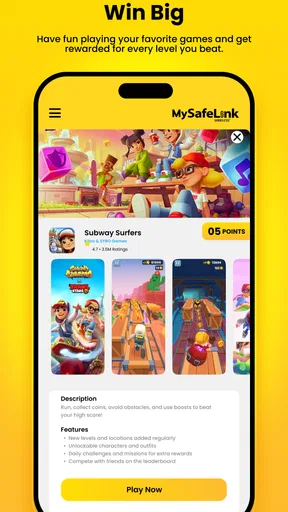
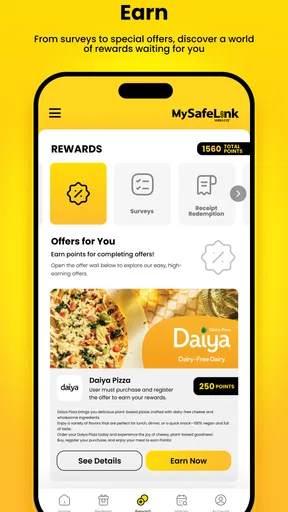
 Analysis by AppCompare
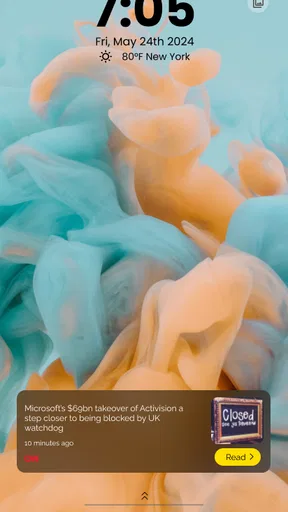
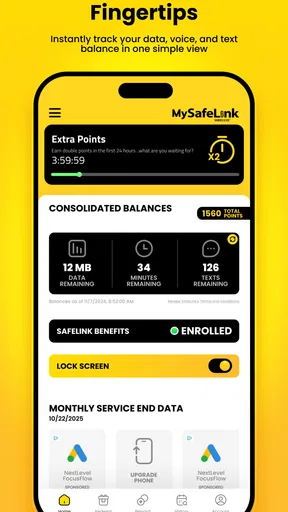
When a SafeLink task is time-sensitive, the frustrating part is often not the phone itself but finding the right way into the service. My SafeLink is a free communication app from Mgames LLC, aimed at people who use SafeLink and want a convenient point of access from their phone’s lock screen. That focus makes it quite different from a general messaging app: its value depends on whether the SafeLink shortcut fits the way you already handle your account and service.
Where the first snag can happen
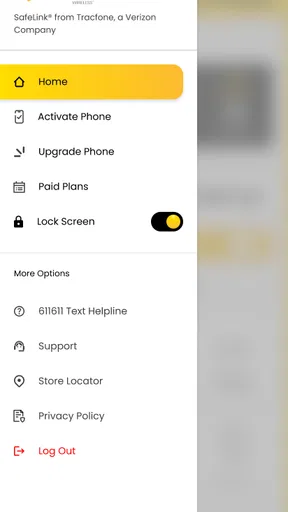
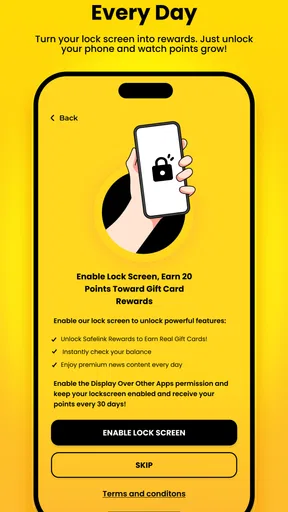
The lock-screen idea is useful because it can reduce the steps between picking up your phone and reaching SafeLink. But a shortcut is not the same thing as the service itself. If you are expecting a full replacement for your phone’s calling, messaging, account-management, or support tools, it is worth adjusting that expectation before you install it. I would treat this as a focused access aid, not a complete communications hub.
That distinction matters when something does not open as expected. A lock screen can behave differently depending on the phone’s settings, and the app’s usefulness also depends on being able to reach the relevant SafeLink destination. If the shortcut is missing, delayed, or not behaving as you expect, I would first check the phone’s lock-screen and app settings rather than assume that your SafeLink account has changed.
Simple checks before relying on it
Before making the app part of your routine, I would install it, open it while the phone is unlocked, and confirm that the SafeLink access route works from there. Then check whether the lock-screen entry is available and visible on your device. This gives you a reliable fallback: if you are in a hurry and the shortcut is not present, you still know how to get to the app directly.
It is also sensible to check that the phone is running a compatible Android version. The app supports Android 7.0 and later, and the current version is 2.0.9. If your device is older than that, or is running an outdated system build, troubleshooting the lock screen may not solve the underlying compatibility issue.
Getting back on track when access fails
If the app opens but its SafeLink route does not take you where you need to go, try the same task through your usual SafeLink access method. That comparison helps narrow down whether the problem is specific to the app’s shortcut or to the service or account you are trying to reach. I would avoid repeatedly changing several phone settings at once; make one adjustment, test again, and keep track of what changed.
A practical routine is to keep the app’s direct icon available even if the lock-screen option is your preferred route. That way, the shortcut is a convenience rather than a single point of failure. If you are preparing for an important call or account task, test access beforehand instead of waiting until you need it urgently.
Worth Reading Before You Choose

EA SPORTS FC Mobile 26 Is a Bigger Football Game, but It Takes Time

Flipboard Shows What News Apps Must Do Beyond the Feed

Switching to Android Auto Means Rethinking Your Driving Routine

Google Calendar Makes a Crowded Week Easier to Manage

Ludo King Makes the Most of the Minutes Between Plans

Baby Panda World Brings Quick Play to Modern Phones, but Its Game Library Feels Busy
When the phone or service may be the issue
Not every access problem starts inside My SafeLink. A phone’s lock-screen configuration, a temporary network problem, or an issue with the SafeLink account or service can all affect the result. If the same task fails through other ways of reaching SafeLink, the app may not be the cause. In that situation, I would use the normal support or account route rather than treating the lock-screen shortcut as a diagnostic tool.
The app is most appealing to someone who already uses SafeLink and wants a quicker route to it. If you do not use SafeLink, or if you prefer to reach services only through their established app or website, there is little reason to add another access point. Likewise, people looking for a broad social, chat, or calling platform should choose a tool built for those jobs.
Its audience is reflected in its scale: My SafeLink has more than a million installs, an average rating of 4.1 from around eleven thousand ratings, and roughly four and a half thousand written reviews. Those figures suggest it has found a substantial audience, but they do not guarantee that its lock-screen behavior will match every phone. I would judge it by a simple test: does it make your own SafeLink routine easier without adding another step when the shortcut is unavailable?
Getting Started with My SafeLink
When I first launched My SafeLink, I was greeted by a clean and intuitive interface. It's the kind of layout that doesn’t make you feel overwhelmed, which is always a win in my book. The onboarding process was smooth, guiding me step by step through setting up my account. It even had a playful little animation that made the whole setup process feel less like a chore.
The app is designed to help you store and manage your personal documents securely. Think of it as a digital vault, but with a lot more flair and usability. You can upload everything from IDs to insurance documents, and the app ensures they’re encrypted and protected.
Features that Stand Out
One of my favorite features has to be the document scanner. You know those times when you need to scan a document, but you're nowhere near an actual scanner? My SafeLink has you covered. The scanner is surprisingly accurate, automatically cropping and enhancing images for clarity. It’s like having a portable scanner in your pocket.
Another feature that deserves a shoutout is the password manager. We all know the struggle of remembering a million different passwords. With My SafeLink, you can store them in a secure vault. The app even suggests strong passwords for you, which is a lifesaver for someone like me who tends to use the same password everywhere.
User Experience
Now, let's talk about user experience. Navigating through the app is a breeze. Everything is exactly where you’d expect it to be. The developers clearly put a lot of thought into making the app user-friendly. There's a handy search function that lets you find documents in a flash, and organizing them into folders was as easy as pie.
The app also impressed me with its seamless integration across devices. I could start working on my phone and easily pick up where I left off on my tablet. Not to mention, the synchronization is almost instantaneous.
Security and Privacy
In today’s world, security is paramount, and My SafeLink takes this seriously. It uses end-to-end encryption to ensure that your documents and data remain private. Plus, the app requires either a fingerprint or a passcode to access, adding an extra layer of protection.
For those concerned about privacy, the app doesn’t store your data on its servers. Everything is kept locally on your device, which means you’re in control of your information. This feature really put my mind at ease, knowing that my sensitive data wasn’t floating around in the cloud.
Final Thoughts
After using My SafeLink for a few weeks, I can confidently say it’s a game-changer for anyone looking to organize and secure their digital life. The app delivers on its promise of security and ease of use, making it an essential tool in today’s digital age.
Whether you’re a busy professional juggling multiple documents or just someone who values privacy and organization, My SafeLink is worth checking out. It’s like having a personal assistant, minus the coffee runs. So go ahead, give it a try, and see how it fits into your daily routine.
What this means in an everyday routine
Picture needing to reach SafeLink while you are out and have only a moment to spare. If you have already confirmed that the shortcut works on your phone, opening it from the lock screen could save a few taps. If it does not appear, you can unlock the phone and launch the app directly, rather than losing time trying to guess which setting has changed. That small backup habit is the most useful practical tip I can offer: know both routes before you depend on the quicker one.
For a household member who helps someone else with their phone, it is worth checking the setup together while the phone owner is present. They can confirm that the shortcut is convenient and that the device remains comfortable to use. A lock-screen entry may reduce friction, but it also makes it especially important to understand what appears when the phone is locked and who can handle it. I would not enable any access route casually on a shared device.
How it compares with other ways to reach SafeLink
The usual alternatives are to open SafeLink through its regular app route or use the access method you already rely on. Those approaches may take a few more steps, but they are familiar and provide a useful comparison when a shortcut behaves unexpectedly. My SafeLink makes the most sense when speed and convenience from the lock screen matter more to you than keeping every task inside one established app.
That is a narrow but reasonable role. It is not competing with general-purpose communication apps on chat features, nor should you choose it as a substitute for a service you do not already use. If your current method is dependable and only takes a moment, adding a separate shortcut may not improve much. If you regularly need SafeLink access and find the usual route cumbersome, the extra entry point is more compelling.
Who should try it, and who can pass
I would consider it if SafeLink is already part of your routine, your phone meets the Android 7.0 minimum, and you are willing to test the lock-screen route before relying on it. Its Everyone content rating makes it broadly suitable from a content standpoint, while the app’s specific usefulness still depends on whether you need SafeLink access. It is free, so trying it does not require a purchase, but convenience is only a benefit if the shortcut works smoothly on your own device.
I would skip it if you are looking for a general communication app, do not use SafeLink, or prefer not to add another app to your phone for a task you already handle easily. I would also avoid making it your only route to an important account action. Keeping a known alternative is sensible for any lock-screen shortcut, especially when phone settings or connectivity can affect access.
Overall, I see My SafeLink as a purpose-built convenience rather than an essential app for everyone. Mgames LLC has made an app for a particular access need, and its appeal is strongest when that need comes up often enough to justify a faster route. My recommendation is straightforward: install it only if SafeLink is relevant to you, test both the lock-screen and direct-app paths, and keep using whichever route proves dependable on your phone.
Pros
- User-friendly interface for easy navigation.
- Secure data encryption ensures privacy.
- Quick setup with step-by-step guidance.
- Compatible with multiple devices and platforms.
- Regular updates enhance functionality.
Cons
- Limited free version features available.
- Occasional sync issues with older devices.
- Customer support response can be slow.
- Some features require a stable internet connection.
- In-app advertisements can be intrusive.
FAQs for My SafeLink
What is My SafeLink and what does it do?
My SafeLink is a secure communication app designed to enhance privacy and security for its users. It provides end-to-end encryption for messages, calls, and file transfers, ensuring that your conversations remain private. The app also offers features like anonymous chat options and secure cloud storage, making it ideal for users who prioritize security.
Is My SafeLink available for both Android and iOS?
Yes, My SafeLink is available for both Android and iOS platforms. Users can download the app from the Google Play Store for Android devices and the Apple App Store for iOS devices. The cross-platform availability ensures that users can maintain secure communication regardless of their device type.
How does My SafeLink ensure user privacy and security?
My SafeLink uses advanced encryption protocols to protect user data. All messages, calls, and files are encrypted end-to-end, meaning only the sender and recipient can read or listen to them. Additionally, the app does not store any messages on its servers, further protecting user privacy from unauthorized access.
Are there any subscription fees for using My SafeLink?
My SafeLink offers both free and premium subscription plans. The free version includes basic features such as encrypted messaging and calls. The premium version, available for a monthly or annual fee, provides additional features like larger cloud storage, advanced security settings, and priority customer support.
What are the system requirements for installing My SafeLink?
To install My SafeLink, Android users need a device running version 5.0 (Lollipop) or higher, while iOS users require a device running iOS 11.0 or later. The app is lightweight, ensuring it runs smoothly on most devices without significant performance impact. Regular updates are provided to maintain compatibility and security.


